Link a source
Contents
PostHog enables you to link your most important data from sources like your CRM, payment processor, or database. Once linked, you can combine this data with the product analytics data already in PostHog and query across all of it.
To link a source, go to the Integrations tab, and click the Sources tab.
Managed sources
Provide your credentials and PostHog handles the entire extract and load process. Data syncs automatically from your source to PostHog's storage.














































































Self-hosted sources
Upload CSV or Parquet files to your own object storage and link them as a source. PostHog reads directly from your storage on every query. You control data freshness and can store as much data as you want.




Inbound IP addresses
We use a set of IP addresses to access your instance. To ensure this connector works, add these IPs to your inbound security rules:
| US | EU |
|---|---|
| 44.205.89.55 | 3.75.65.221 |
| 44.208.188.173 | 18.197.246.42 |
| 52.4.194.122 | 3.120.223.253 |
Linking a custom source
The data warehouse can link to data in your object storage system. To do this, you'll need to:
- Create a bucket in your object storage system like S3, GCS, or Cloudflare R2
- Set up an access key and secret
- Add data to the bucket (potentially using a tool like Airbyte, Fivetran, Stitch, or others)
- Link the table in PostHog
See an example in our S3 setup docs.
Sync methods
When setting up a source, you choose a sync method for each table. The available options depend on the source and table. Some sources also support webhook sync for real-time updates.
Webhook
Webhook sync receives data updates directly from the source via webhooks. This provides the fastest data freshness with minimal sync overhead. It's available only on sources that support webhooks (like Stripe) and is shown as the recommended option when available.
The webhook is configured during source setup.
Incremental
With incremental replication, you only sync new or updated data. This reduces the total number of rows synced and how long it takes to sync.
When choosing incremental replication, you must select a field to identify new and updated data. This is often something like an updated_at timestamp, or an autoincrementing ID. Not all fields are suitable to be used to identify new and updated data, and so we only support the following types as replication keys:
integer(includingbigintandsmallint)datetimedatetimestampnumeric(for Snowflake)
The one downside to incremental syncing is that deletions of data won't be synced to your PostHog data warehouse. You need to use full table refreshes for this.
If you select a nullable field as the replication key, any rows where that field is null are skipped during sync. PostHog displays a warning when you select a nullable field. To avoid missing data, use a non-nullable field as the replication key.
Primary key columns
Incremental sync uses primary key columns to deduplicate rows. During source setup, PostHog auto-detects primary keys from your source's metadata (such as INFORMATION_SCHEMA constraints). If no constraint is found, it falls back to an id column when one exists.
For sources like BigQuery views that don't support primary key constraints, or tables with non-standard primary key names (like _id), you can select custom primary key columns during setup. This is available for all managed SQL sources: Postgres, MySQL, MSSQL, Redshift, Snowflake, and BigQuery.
Once the first incremental sync completes, the primary key columns are locked and can't be changed. To modify them, delete the synced data first.
PostHog displays a warning if your selected primary key columns are nullable, since null values can cause deduplication issues.
Append only
Append only does what it says on the tin: append rows to your table.
We use a cursor in the form of an incremental field (similar to incremental syncing above) to query the source for new data. This replication method won't merge any rows, but this can cause duplicate data if you're using an incremental field that can change. To avoid this, we recommend using a timestamp field like created_at.
Append only is ideal for tables where rows are never updated, only added. A common example is an event log table, where each new event is recorded as a new row and existing records remain unchanged.
As with incremental syncing, selecting a nullable field as the cursor skips any rows where that field is null.
Full table
This reloads the whole table on every sync. This is great for tables with common data deletions or ones without an incrementing field (such as a updated_at timestamp).
Syncing
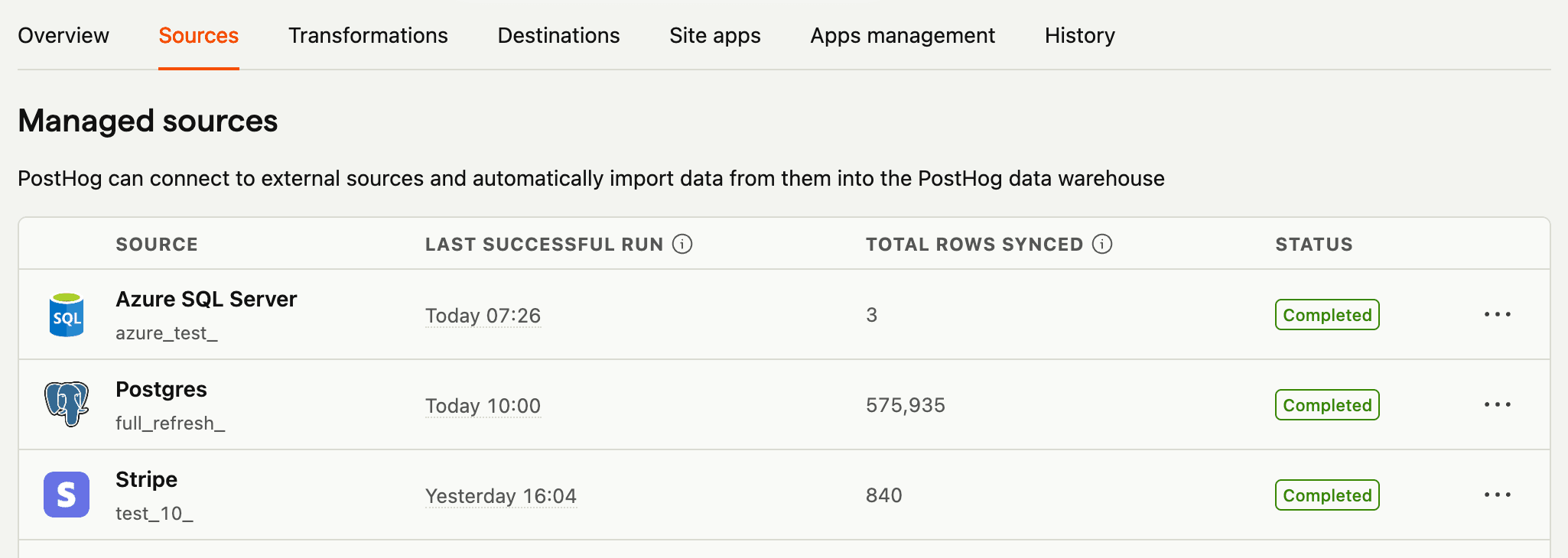
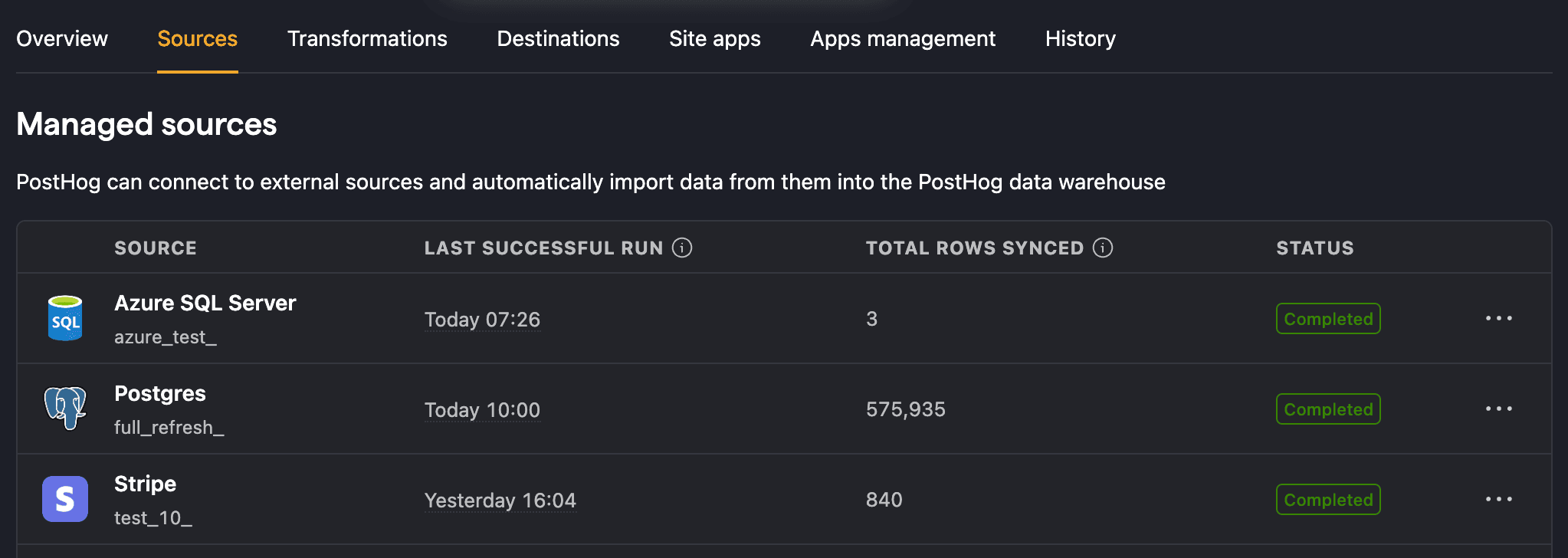
Once you add a source, you can see its status, sync frequency, and last successful run in the sources page. You can also reload or delete sources here.
When you expand each source, you can see:
- Schema name
- Enable or disable syncing for that table
- Synced table name in PostHog
- Time the table was last synced
If you add new tables to your source database, click Pull new schemas to discover them without waiting for the next sync. This only updates the list of available schemas – it doesn't trigger a data sync.
To sync all enabled schemas at once, click Sync all enabled schemas. A confirmation dialog appears before the sync starts. This triggers a new sync for every enabled schema that isn't already syncing, so you don't need to sync schemas one by one.
Filtering and sorting schemas
The schemas table supports filtering and sorting to help you find specific schemas in sources with many tables.
You can filter schemas by:
- Status - Running, Completed, Error, etc.
- Sync method - Incremental, Full table, CDC, or schemas not yet set up
- Frequency - Filter by a specific sync interval
You can also use the name search and the Show enabled only toggle to narrow results further.
All columns in the schemas table are sortable, including schema name, status, frequency, last synced, and rows synced.
Managing schemas in bulk
Select multiple schemas using the checkboxes in the schemas table to perform bulk actions. The following bulk actions are available:
- Disable - Disable syncing for all selected schemas. A confirmation dialog appears if any selected schemas use CDC or webhook sync, since re-enabling them requires a full resync.
- Set frequency - Change the sync frequency for all selected schemas at once. If the selection includes non-CDC schemas, only frequencies of 5 minutes or longer are available.
- Sync now - Trigger an immediate sync for all selected schemas that are enabled and have a sync method configured. Schemas that are disabled or don't have a sync method set up are skipped.
- Delete tables and resync - Delete the synced data in PostHog and re-import it from scratch.
- Delete tables from PostHog - Remove the synced tables from PostHog without affecting the data in the source.
Bulk enable is not available – you must enable schemas individually since each one requires selecting a sync method and configuration.
Sync frequency
CDC (Change Data Capture) schemas support sync frequencies as low as every 1 minute. All other sync methods (Incremental, Full table, Append only) have a minimum sync frequency of 5 minutes. This restriction is enforced in both the UI and the API.
Managing webhook tables
Webhook-synced tables have special behavior when enabling or disabling them:
Disabling a webhook table - When you turn off syncing for a webhook table, a confirmation dialog warns you that the webhook stops consuming data immediately. Any events sent while the table is disabled are lost.
Re-enabling a webhook table - When you re-enable a previously disabled webhook table, PostHog automatically triggers a full refresh sync. This ensures no data gaps from the period when the webhook was inactive.